001/ a snip → the right chat

A snip, straight into the right Claude chat.

Press a hotkey, drag a box, pick the conversation by color. Your screenshot lands in the right ongoing Claude Desktop chat — the one that already has your context.

Windows tray utility · nothing touches disk · you always review before send

SnipAIt · live demo
002/ how it works

Three moves. No friction.

The whole point is speed — from "I need to show Claude this" to "it's in the right chat" in a couple of seconds.

001/

Snip

Hit the global hotkey from anywhere. The screen stays live — drag a rainbow marquee around what matters. Esc cancels clean.

002/

Pick

A tiny "Send snip to…" popup lists your recent Claude chats — each with a color you'll learn. Click it or press its number.

003/

Sent

Claude Desktop jumps to that conversation and pastes the image into the composer. You read it over, then hit send.

003/ why it's different

Built for the chat that already has your context.

01

Into the right ongoing chat

A new chat every time is worthless — it has no context. SnipAIt routes your snip into the specific conversation that's already deep on the problem, so Claude picks up right where you left off.

02

Nothing ever hits disk

The capture lives in memory, goes onto the clipboard for the paste, and is wiped a few seconds later — on every path, including cancel. No stray screenshots piling up in a folder.

03

Zero setup

No pasting conversation IDs, no config wrangling. SnipAIt reads your Claude Desktop sidebar itself and shows your real recent chats, newest first.

04

You always review before send

It pastes into the composer and stops. It never presses Enter for you — you look it over and send when you're ready.

05

Pick by color

Every chat gets a stable color from its name, so the same conversation is always the same color. You stop reading names and start reaching for "the green one."

004/ from the same shop

More things I've built.

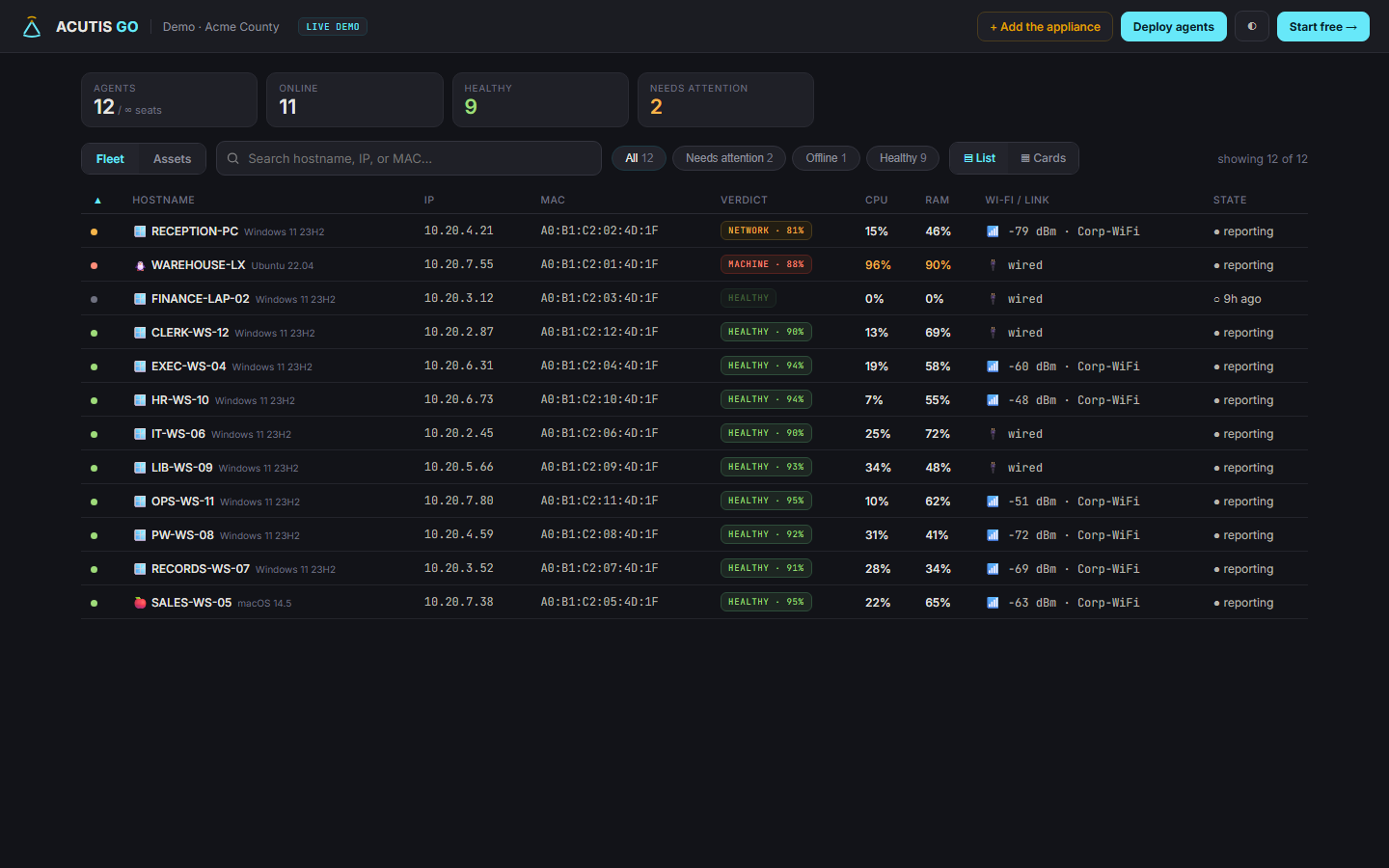
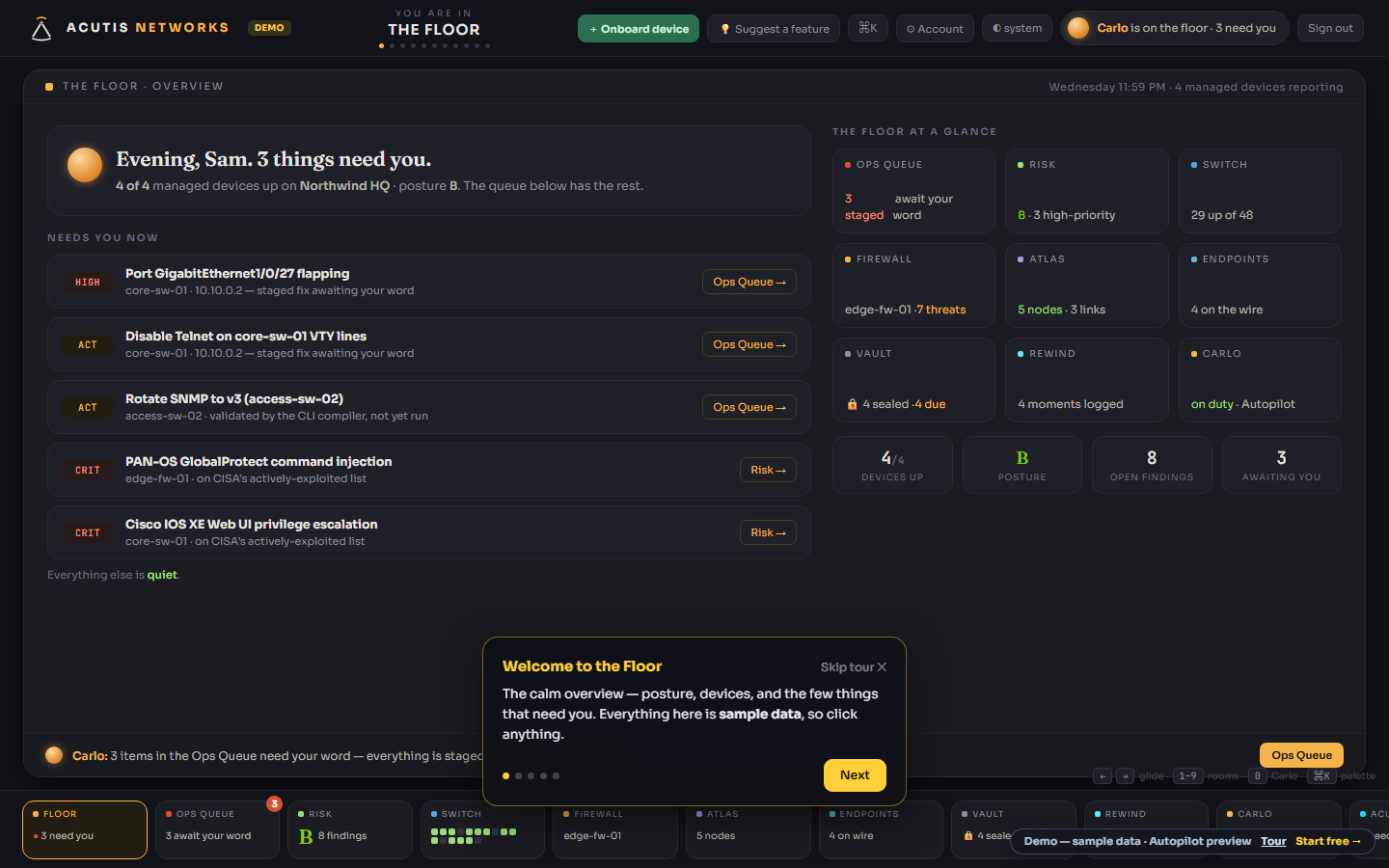
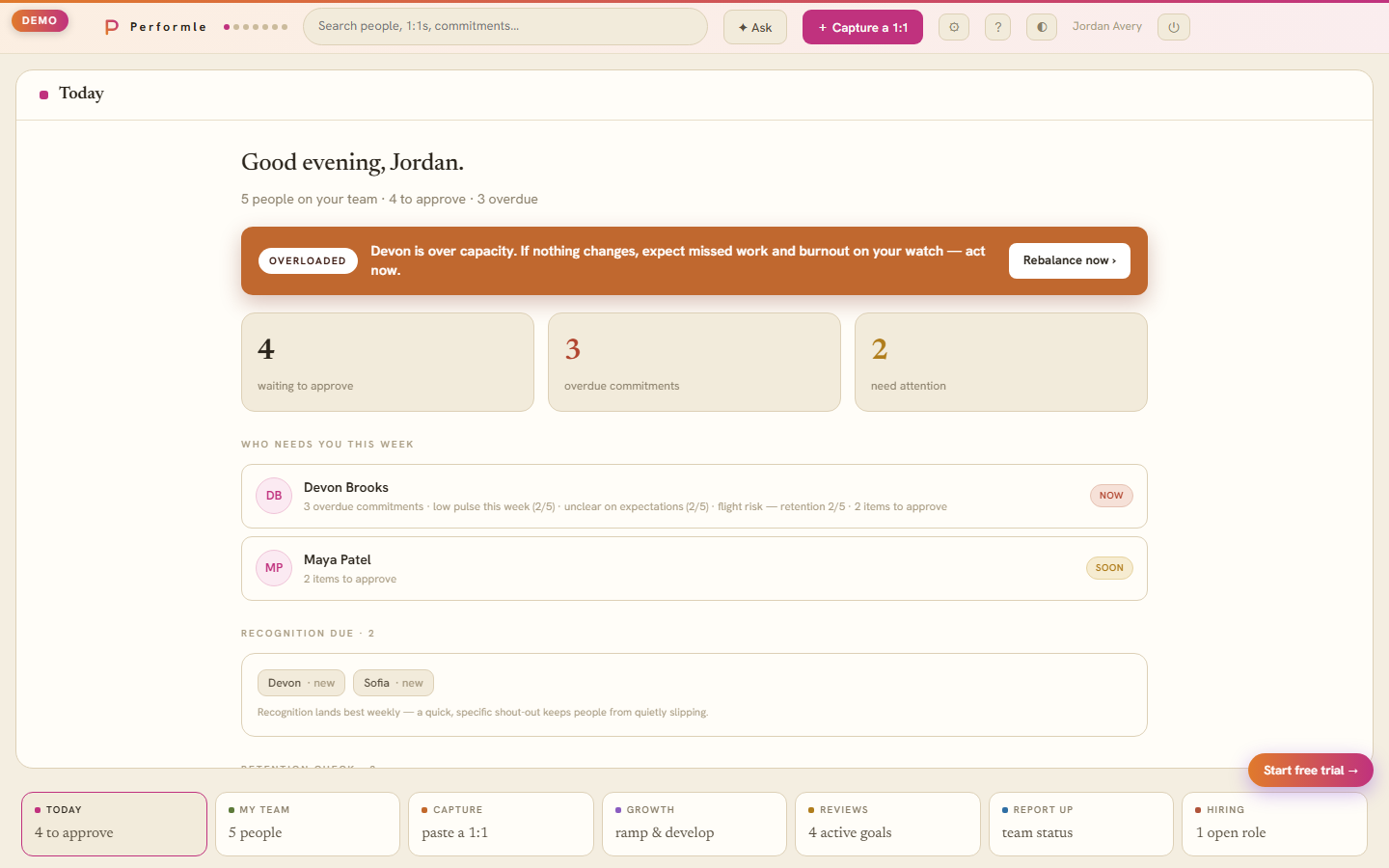
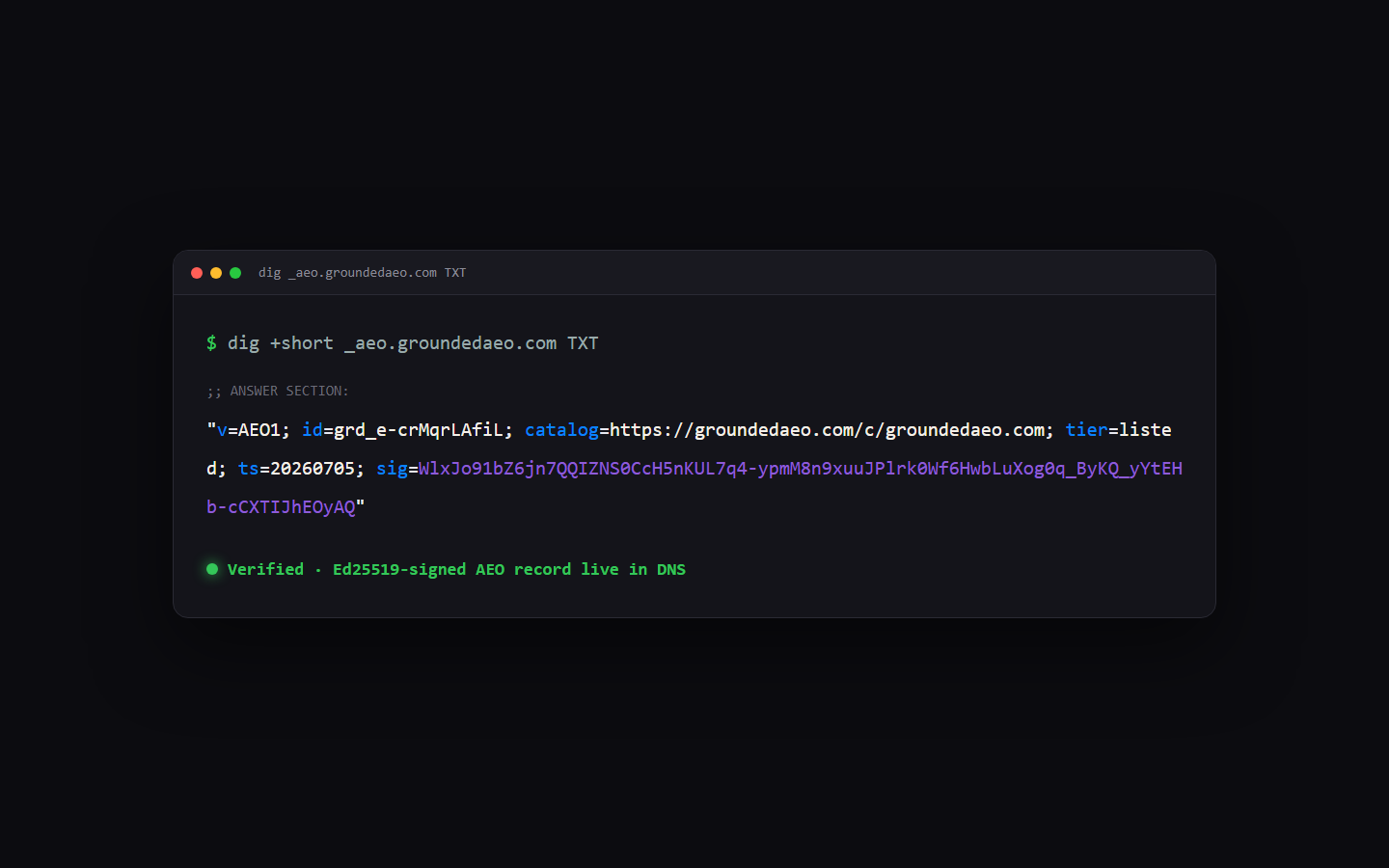
A handful of other products from the same workbench — networks, AI discovery, and the tools around them.

005/ get it

Five bucks, or roll your own.

Same tool either way. Pay to skip the setup, or clone the repo and build it yourself.

$5 · one-time

One-click signed installer

The packaged Windows build — signed, no admin gymnastics, installs to your tray and stays out of the way. The fastest path to a working hotkey.

$0 · open source

Build it free on GitHub

MIT-licensed. Grab the Python source, install the deps, and run it. Read exactly what it does before you trust it with your screen.

Open source · MIT license · Windows 11 · works with Claude Desktop

006/ questions

Quick answers.

New here? What is SnipAIt covers the whole tool in a page, and SnipAIt alternatives compares it honestly with the Snipping Tool, ShareX and the built-in Windows flows. Stuck pasting an image into Claude Code? Ctrl+V on macOS and Linux, Alt+V on Windows and WSL — and why.

Q1

Does SnipAIt save screenshots to disk?

No. The capture lives in memory, goes onto the clipboard for the paste, and self-clears a few seconds later — on every path, including cancel. No stray screenshots pile up in a folder.

Q2

Does SnipAIt ever send a message for me?

No. It pastes the image into the conversation's composer and stops — it never presses Enter. You always review before sending.

Q3

How much does SnipAIt cost?

$5 one-time for a signed one-click Windows installer, or free — the source is MIT-licensed on GitHub and you can build it yourself.

Q4

What do I need to run SnipAIt?

Windows 10 or 11 with Claude Desktop installed and running. No account, no API keys, no configuration.

Q5

How does SnipAIt know my Claude chats?

It reads your Claude Desktop sidebar via Windows UI Automation and lists your recent conversations, each with a stable color so you can pick by color. Nothing is sent anywhere.

Q6

Is the SnipAIt installer signed?

Yes. The $5 download is a code-signed Windows MSI that installs through the trusted Windows installer, so it goes in cleanly on a default Windows 11 machine with Smart App Control on. A SHA-256 checksum is published at https://snipait.com/dl/SnipAIt-Setup.msi.sha256 so you can verify the exact file you got.

Q7

Does SnipAIt send my screenshots anywhere?

No. SnipAIt talks to the Claude Desktop app on your own machine and to nothing else — there is no server of its own, no analytics and no telemetry. Your image reaches Anthropic only when you choose to press send in Claude.

Q8

Does SnipAIt work with Claude Code?

Yes, when the Claude Code session appears as a conversation in your Claude Desktop sidebar. Those show up in the picker like any other chat, so a snip routes into them the same way.

Q9

What are the alternatives to SnipAIt?

The Windows Snipping Tool with a manual paste, power capture tools such as ShareX and Greenshot, the built-in PrtScn flows, and the Claude Desktop attach button. All of them are good at capturing; SnipAIt's narrower job is delivering the capture into a chosen ongoing Claude conversation in one keystroke. The honest side-by-side is here.